Edit captions right in the player

Dear Webgate.io Community,

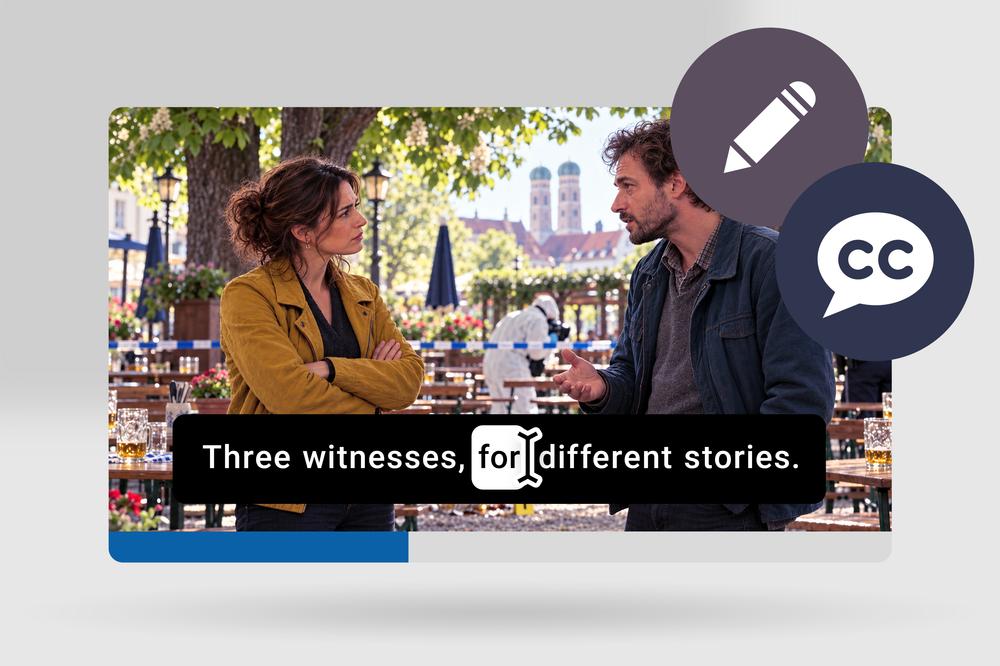
a typo in a caption, a misspelled name, a line that doesn't match the picture: these mistakes usually show up exactly when you're reviewing footage in the player. From now on, you can fix them right where you spot them, in the player's caption overlay.

Here's an example: a producer is reviewing the final cut of an episode with English subtitles together with the director. Twelve minutes in, she notices a typo. Instead of downloading the file, fixing it and uploading it again, she clicks into the caption, corrects the word and keeps watching. From then on, everyone on the project sees the corrected version.

How to edit captions in the player

While a caption is on screen, simply click into the text. The overlay turns into an input field, and you edit the text as usual. Your change is saved as soon as you click away or press Ctrl+Enter. It goes straight into the caption file, without a detour through the caption editor. You can then download the corrected version as SRT or retrieve it via the API.

Only the caption you edit changes. Timecodes, all other captions and comments in the file stay exactly as they were. This works for captions in WebVTT and SRT format. If a caption contains formatting such as bold text, you'll see the formatting tags as plain text while editing. That way you can adjust them deliberately, and they're preserved when you save.

Available to admins, managers and collaborators

Anyone with the role admin, content manager or collaborator in the project can edit captions. For everyone else, the player stays the same: they see the captions but can't change them.

Give it a try the next time you review footage. We look forward to your feedback at help@webgate.io.

Best regards,
Your Webgate.io Team

Pubblicato il: 19 Ottobre 2026 07:15

Edit captions right in the ...

Improved clip sorting for episodic productions: episode, scene, take

Dear Webgate.io Community,

Nobody reviews dailies in file names. You think in scenes and shots. That's exactly how Webgate.io has always sorted: by scene, shot and take, ascending, straight from the metadata. What was missing was the episode.

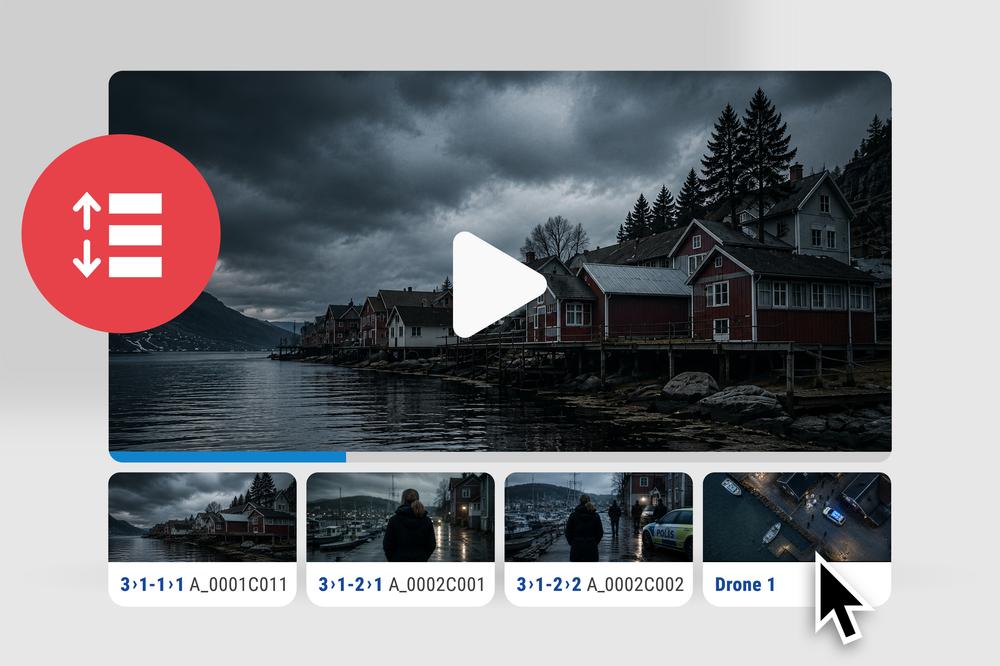
That's what we've been working on. Webgate.io now takes the episode into account too, both in sorting by metadata and in the display. On episodic formats, you can see at a glance which clip belongs where.

Scene 7 exists in every episode

Scene numbering starts over in every episode. Scene 7 exists in episode 1, in episode 2 and in episode 8, and those are three completely different scenes. Until now, Webgate.io only looked at scene, shot and take when sorting, so their clips ended up right next to each other in the playlist.

Now Webgate.io sorts by episode first. Each episode forms one block in the list, and inside an episode the order still follows the script. If your production doesn't work with episodes, nothing changes for you.

Where the values come from

The values come from the metadata that LockitScript transfers automatically, or from ALE files (Avid Log Exchange) you import into Webgate.io. There's nothing to set up. Just pick «by metadata (episode / scene / take)» as the sorting in your playlist.

  • Episode, then scene, then shot, then take. If all four match, the clip name decides.
  • If one value is missing, the clip still stays where it belongs.
  • If all four are missing, the clip goes to the end of the list. That's usually drone footage or takes that were never circled.
  • Waste always comes last. If «waste» shows up in episode, scene, shot or take, the clip drops to the bottom.
  • Leading zeros don't matter. «7» or «007», the order stays the same.

You see the episode right on the clip

Sorting alone isn't enough: you also need to see which episode a clip belongs to. That's why the episode now shows up in the playlist's list view and on the thumbnail in the open player, next to scene, shot and take and highlighted in colour. You only see what's actually there, so with no episodes in the project you'll still just see scene, shot and take.

That turns a tedious step into a quick one. You can see at a glance which clips come from one episode, select them right there and build your own playlist from them, without opening a single clip first.

Clip names stay readable

We've tidied up the clip names too. Cameras like the ARRI ALEXA follow a fixed naming scheme, and on a thumbnail only the front part of it tells you anything. So we shorten it for you:

  • «A004C022_200121_JK4L.mov» becomes «A004C022»
  • «A_0004C022_200121_JK4L.mov» becomes «A_0004C022»
  • all other names stay as they are

Less searching, more reviewing

Webgate.io arranges your material the way the script does: by scene, and now by episode too. That saves you steps, keeps the overview while you review, and gets video feedback to the right clip faster.

Pro Tip: Want to see every clip from one episode of a shooting day at once? Switch to the Play View, select the clips view and turn on the filter for that episode. They'll all be there on one page.

Best regards,
Your Webgate.io Team

Pubblicato il: 01 Settembre 2026 08:15

Improved clip sorting for e...

User Groups: A New Way to Manage Users in Webgate.io

Dear Webgate.io Community,

today we have an update for you that teams with many projects within one organization have been waiting for: User Groups are here. We know how much user management can make you groan at times, and that is exactly where this update comes in. We are thrilled to finally share it with you.

No More Digging Through Excel Lists

Across many projects, the same people keep working together: the production company's team, the editors and assistant editors, the VFX department, and the dailies team. Until now, you had to gather these people together for every new project. And whenever someone left the team, you had to remember to remove that person everywhere again. That costs time and invites mistakes.

With User Groups, we are changing this fundamentally.

Creating and Editing User Groups

There is nothing new to learn. In the «Users» tab on the right of your project, you create and manage user groups exactly the way you used to invite individual users.

You fill a group flexibly: you add existing users from the project or enter new members, who then receive an automatic email invitation to Webgate.io. From there, you assign the group to a project or room exactly like individual users, including a role from Admin all the way to Viewer.

Maintain Once, Up to Date Everywhere

The key is in the permission logic. Access is tied to the group, not to each individual assignment.

In practice, this means: when someone joins a team, you add them to the existing user group and they automatically have access to all the projects and rooms the group is part of. When someone leaves the team, you edit the group once and remove the person. Done. You no longer have to go through every project and room. Especially with many parallel projects, this saves you an enormous amount of time and hassle in your organization.

Everything at a Glance on the Users Page

Open the users page via the context menu of an organization or project, and you get the full overview. For every project, you can see at a glance which user groups hold which permissions, right down to the individual room, so you always know exactly who has access to what.

Who Manages User Groups?

Organization admins can create and manage groups, project admins can add and remove groups.

This feature is a direct customer request and grew out of our daily work with you. Thank you for the feedback that keeps making Webgate.io better.

Best regards,
Your Webgate.io Team

Pubblicato il: 06 Luglio 2026 11:30

User Groups: A New Way to M...

Keep Your Feedback Focused – Import Edit Index Files from DaVinci Resolve

Dear Webgate.io Community,

Anyone working with DaVinci Resolve knows the challenge: an exported EDL always contains every comment from the timeline. In reality, however, those comments are often intended for different departments — such as VFX, retouching, grading, or editing.

Until now, if you wanted to import only a specific subset of those comments into Webgate.io, you had to manually edit the EDL first. This process was time-consuming and prone to errors.

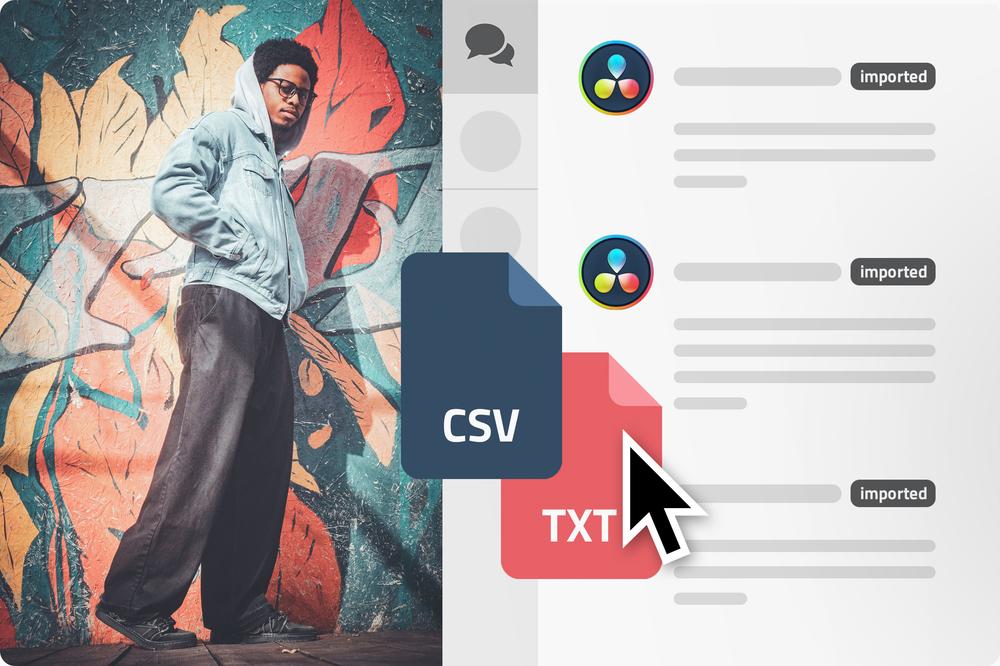
With DaVinci Resolve 20, Blackmagic Design introduced an elegant solution: exporting filtered Edit Index files as CSV or TXT.

Webgate.io now supports exactly these files.

Instead of importing every comment from a timeline, you can first filter comments in DaVinci Resolve by color or text content and export only the entries relevant to your workflow. These filtered Edit Index files can then be imported directly into Webgate.io.

This opens up new possibilities for structured review workflows:

  • VFX teams receive only the VFX comments relevant to them.
  • Retouch departments see retouch notes exclusively.
  • Production and editorial can work specifically with their own comment groups.

The result: less clutter, less manual cleanup, and significantly more focused feedback workflows.

Best regards,
Your Webgate.io Team

Pubblicato il: 10 Giugno 2026 13:00

Keep Your Feedback Focused ...

Hola, Bonjour, Olá – Say hello to multilingual Webgate.io

Dear Webgate.io Community,

Video-Review is teamwork — and teams in the film industry are rarely monolingual. Director from Brazil, script supervisor from France, producers from Mexico: when working with footage every day, language shouldn’t be another obstacle.

That’s why Webgate.io is now available in nine languages. In addition to German and English, you can now use the platform fully in Spanish, French, Polish, Portuguese, Italian, Czech and Dutch— from navigation and guides to system messages and emails.

This is more than just a technical update. Working in your native language means fewer mistakes, faster decisions, and a smoother workflow. Especially in high-pressure dailies environments, that makes a real difference.

You can change your language at any time in your account settings — each team member simply chooses what works best for them.

For us, this is just another step toward truly international collaboration.
Webgate.io is built for productions that work across borders — and the platform should reflect that.

Viele Grüße, Best regards, Saludos cordiales, Cordialement, Serdeczne pozdrowienia, Com os melhores cumprimentos, Cordiali saluti, S pozdravem, Met vriendelijke groet,

Your Webgate.io Team

Pubblicato il: 10 Aprile 2026 13:00

Hola, Bonjour, Olá – Say he...

The Webgate.io Clip Collector

Dear Webgate Community,

Sometimes you know exactly which shots you need for a selection — for example, all shots from a specific scene or all the material from a particular episode. Yet the clips are scattered across multiple playlists, shooting days, or folders.

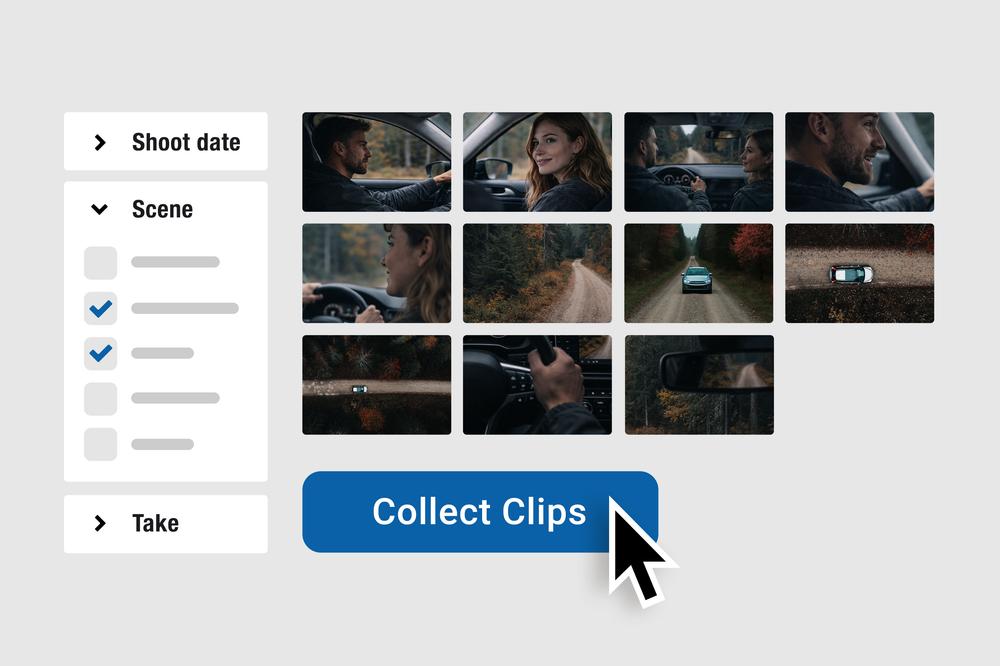
With the new Clip Collector, you can now assemble clips into a new playlist across the entire project based on their Metadata.

Currently, you can filter by the following metadata fields: Reel, Scene, Shot, Take, Shooting date, Shooting day, Circle Take and Episode.

Instead of manually clicking through existing playlists, you can create a new, dedicated working playlist — precisely based on these production details.

This is especially helpful when you want to isolate a complete scene for shot/reverse-shot testing or compile material from a particular episode in a structured way.

The Clip Collector is not just a filtered view — it’s a tool for building clearly defined playlists that you can continue working with or share directly.

Less searching — fewer detours — more speed in your workflow.

Best regards,
Your Webgate.io Team

Pubblicato il: 17 Febbraio 2026 08:00

The Webgate.io Clip Collector

Livegrading, Metadata & Webgate.io: Behind the High-End Workflow of «Die Ältern»

On May 6, 2025, Constantin Seiler, Product Manager at Webgate.io, spoke with Chris Saure, the DIT of the project «Die Ältern», about the unique aspects of the workflow used during this shoot. This blog post presents a condensed summary of the interview.

Webgate.io: Christian, you’ve just returned from shooting the project «Ältern», the new film by director Sönke Wortmann, written by Jan Weiler and shot by DoP Andreas Berger. You were the DIT on this project. What did your workflow look like—especially in terms of Webgate.io, Lockit, Silverstack, and ARRI?

Christian Saure: First, of course, the workflow needs to be set up. I was involved from the very beginning and also developed a Show LUT specifically for the project. On set, we used a workflow where I did live grading directly on site using Pomfort Livegrade. The clever part: the CDL values for grading and all metadata from the script supervisor were written directly into the camera files. We used Lockit technology to achieve this. That meant no more loose metadata—everything was embedded directly in the raw footage. We controlled the cameras using the ARRI Companion App.

Webgate.io: Sounds exciting! How did you technically implement that?

Christian Saure: We did it using the Lockit+. This allowed us to write the script data from LockitScript directly into the HDE camera files, including scene and take information as well as comments. This method ensures that no information is lost and that the workflow is much smoother.

Webgate.io: How did the live grading work exactly on set?

Christian Saure: We worked with Pomfort Livegrade and transferred the grading using CDL values directly into the camera (Alexa Mini LF), and in some cases, we also adjusted the white balance using the ARRI Companion App. This way, the DoP and the entire team were able to see the final image directly on set—on all monitors. The big advantage: we hardly needed to regrade later, which saved a lot of time.

Webgate.io: And where did Silverstack come into play?

Christian Saure: Silverstack Lab was essentially our control center on set. I made small adjustments there, if needed, and then created proxies for Webgate.io and Avid. I uploaded those proxies directly into Webgate via Silverstack Lab’s integrated uploader.

Webgate.io: How did the upload to Webgate go—any challenges?

Christian Saure: Not at all, it worked perfectly. The direct upload from Silverstack and automatic metadata transfer made the whole process seamless. All clips were available online within a very short time—often already after the lunch break. This allowed everyone involved to access and review them promptly. It really improved the collaboration on set.

Webgate.io: Did you also use the Lockit Webtools?

Christian Saure: Yes, absolutely. We used the Lockit Webtools to push additional metadata into Webgate and ensure everything was available. We also used the option to view Webgate dailies directly in the LockitScript app on set. This close integration proved very efficient because our script supervisor Valerie Prause had direct access to all already recorded clips throughout the shoot.

Webgate.io: Did others on set also review the dailies?

Christian Saure: Some did use the Webgate Dailies Player App. What I like is that what you see in the Dailies App looks exactly like what I see on my calibrated monitor.

Webgate.io: Were there any particular challenges with this workflow?

Christian Saure: Not really, everything worked great. One small wish for the future would be the ability to upload DNxHD files directly to Webgate.io via Silverstack. But overall, it was a completely smooth process.

Webgate.io: What was the team’s feedback on the workflow?

Christian Saure: Extremely positive. Andreas Berger, our DoP, made intensive use of the live grading and really appreciated being able to make creative decisions on set. Overall, it gave us a feeling of more creative control and security.

Webgate.io: Thank you, Christian, this really sounds like a well-oiled workflow!

Christian Saure: My pleasure! It actually worked so well that we could easily standardize this workflow for future projects.

Pubblicato il: 09 Febbraio 2026 08:00

Livegrading, Metadata & Web...

Bringing Your Vision to Life: Instant On-Set Rough Cuts with Webgate.io

Dear Webgate.io Community,

Anyone who has ever stood on a film set knows that moment of uncertainty: «Do we really have everything? Will the scene resolve cleanly in the edit?» In the worst-case scenario, it only becomes apparent weeks later that a crucial transition shot is missing or the timing in the shot-reverse-shot doesn't work.

To increase security on set, avoid costly reshoots, and bridge the gap to post-production, we have expanded Webgate.io with a powerful function: the integrated pre-cut.

From viewing directly to the rough cut

Instead of just passively viewing material, you can now take action directly in your playlist:

  • Scene Check: Pick out the relevant takes and arrange them in a new playlist copy.
  • Precise Edit Markers: Use edit markers to define exactly the parts of a clip you want to use for the scene.
  • Shot-Reverse-Shot: By duplicating clips within the playlist, you can immediately check the visual interplay of dialogues.

A booster for creative communication

As a director, you often have a concrete idea on set of how a scene can be rhythmically resolved. Instead of laboriously explaining this idea, you can now create it as a visual draft in Webgate.io. This is by no means intended to replace the creative process in the editing suite. The Webgate Pre-Cut serves rather as a valuable basis for discussion and a guide for editors – according to the motto: «This is how I imagined the flow of the scene while filming.»

Seamless transition to post-production

Once you are happy with the sequence in the playlist, you can export the result as an EDL. The editor can import this file directly into Avid, Premiere, or DaVinci Resolve and immediately have your framework on the timeline.

An important pro-tip for the workflow

For the transfer to work perfectly, a clean technical foundation is crucial: make sure that the clips in Webgate.io have the identical filename and start timecode as the original camera files. This is the only way the editing software can assign the EDL information to the proxies with frame-accurate precision.

With the new pre-cut tool, Webgate.io becomes the active link between the set and the editing suite. We are giving directors and creatives a tool to communicate their initial vision immediately. Try it out on your next shooting day and send your vision straight to the edit!

Best regards,
Your Webgate.io Team

Pubblicato il: 03 Febbraio 2026 09:15

Bringing Your Vision to Lif...

Internal Team Feedback vs. Client Review: The new internal comments

Dear Webgate Community,

In post-production and the review process, clear communication is everything. However, there are often things you would rather discuss internally without clients or external partners seeing the feedback.

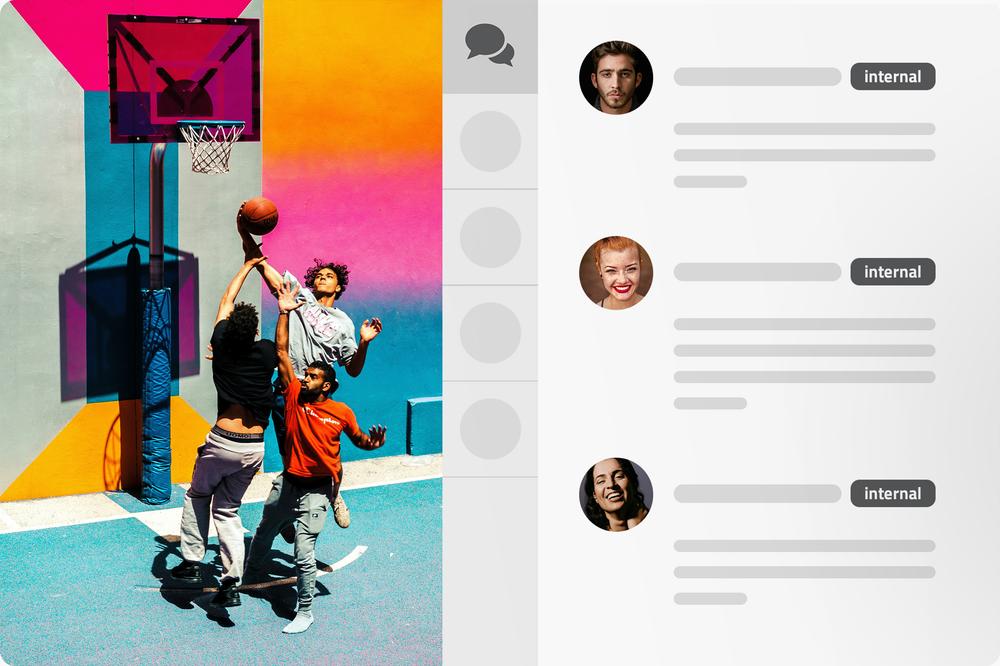
Until now, internal users and external reviewers always accessed the same comments via Directlinks. That changes today. We are excited to introduce a new feature that makes your workflow even more efficient: Internal Comments.

How it works

From now on, as a logged-in user, you can choose between internal and external comments when leaving feedback. Internal comments are only visible to authenticated users who have access to the respective playlist or gallery.

External reviewers who are invited via a Directlink will not see these internal comments. This ensures that internal notes, discussions, and team coordination remain private — without the need for additional playlists or workarounds.

The benefits at a glance

  • Full flexibility per comment: You decide while commenting whether your feedback should remain internal or be visible to everyone. You can also change this setting later.
  • Discreet coordination: Create a Directlink for your clients or partners. They will only see the external comments. Your internal discussions remain invisible to them.
  • Protected file attachments: When leaving a comment, you can upload files directly to it. Perfect for linking reference images or scribbles directly to a frame. Attachments to internal comments can only be seen by internal users.
  • Smart filtering: Use the filter function in the comment list to display only internal comments with a single click, allowing you to focus on team tasks.

Export for editing

We have also integrated this logic into the export of your comments for your editing software: 

  • Logged-in users download all comments by default during export to ensure the full information base is available in the editing system.
  • If comments are downloaded via a Directlink, however, the export only contains information approved for external parties. Internal agreements remain protected.

With internal comments, we are creating a protected space for you and your team, allowing you to address topics openly and unfiltered that are not intended for everyone. Try it out on your next project!

Best regards,
Your Webgate.io Team

Pubblicato il: 22 Gennaio 2026 11:00

Internal Team Feedback vs. ...

Multiline-View for Playlists

Dear Webgate.io Community,

Ever felt that way? You have a long playlist with a lot of clips and you want to quickly find that one specific shot. Until now, you had to scroll through the long, horizontal timeline to get there.

We’ve listened to your feedback and took this exact problem to heart at Webgate.io, developing a brand-new feature that will significantly speed up your work: The Multiline View in playlists.

What's New?
The classic Timeline View used to be the standard. It’s perfect for seeing the chronological sequence of your clips and for arranging your playlist. However, it can get cluttered with many clips, since all the shots are laid out in a single row.

With the new Multiline View, we're changing that fundamentally. Instead of presenting your clips in a long line, they are fanned out and arranged one below the other.

The result? With a single glance, you can see the thumbnails of every single clip in the playlist.

The Benefits at a Glance

  • Full Overview: Immediately, you can see all the footage from a shooting day. Which scenes were shot, and what didn't you get to? You immediately have a visual overview of all the content.
  • Blazing-fast navigation: You no longer have to scroll to find the right clip. A quick glance is all it takes to see where the shot you're looking for is, and you can jump right to it.
  • Maximum efficiency: Finding the right clip, whether for a presentation, Video Feedback, or download, is done in seconds. This saves valuable time and frustration.

How to Activate the New Layout
It’s very simple: Once you've opened a playlist, you'll find the new Multiline icon below the thumbnails. Just click it to switch the view and activate the new overview. You can switch back and forth between the two layouts at any time, depending on what best suits your current task. Webate.io hereby remembers the latest setting for your upcoming playlist view.

We hope this new feature further optimizes how you review your videos and dailies.

Best regards,
Your Webgate.io Team

Pubblicato il: 19 Settembre 2025 09:00

Multiline-View for Playlists